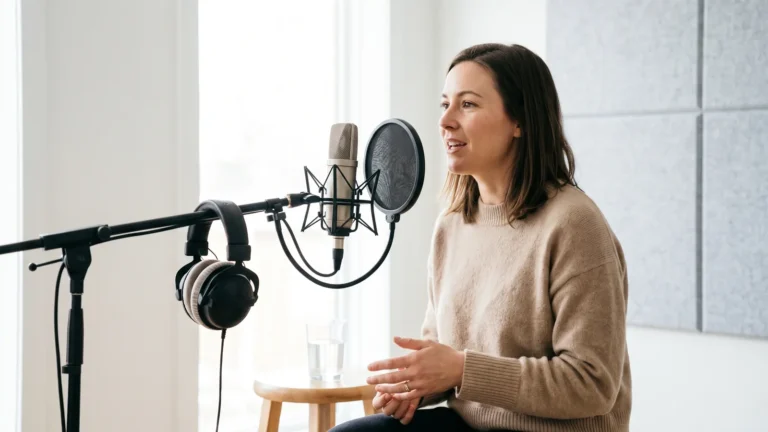
To learn how to do voice over on tiktok, tap Next after your clip is ready, record narration with the microphone icon, or add a text (Aa) layer and choose Text-to-speech, then mix and label.
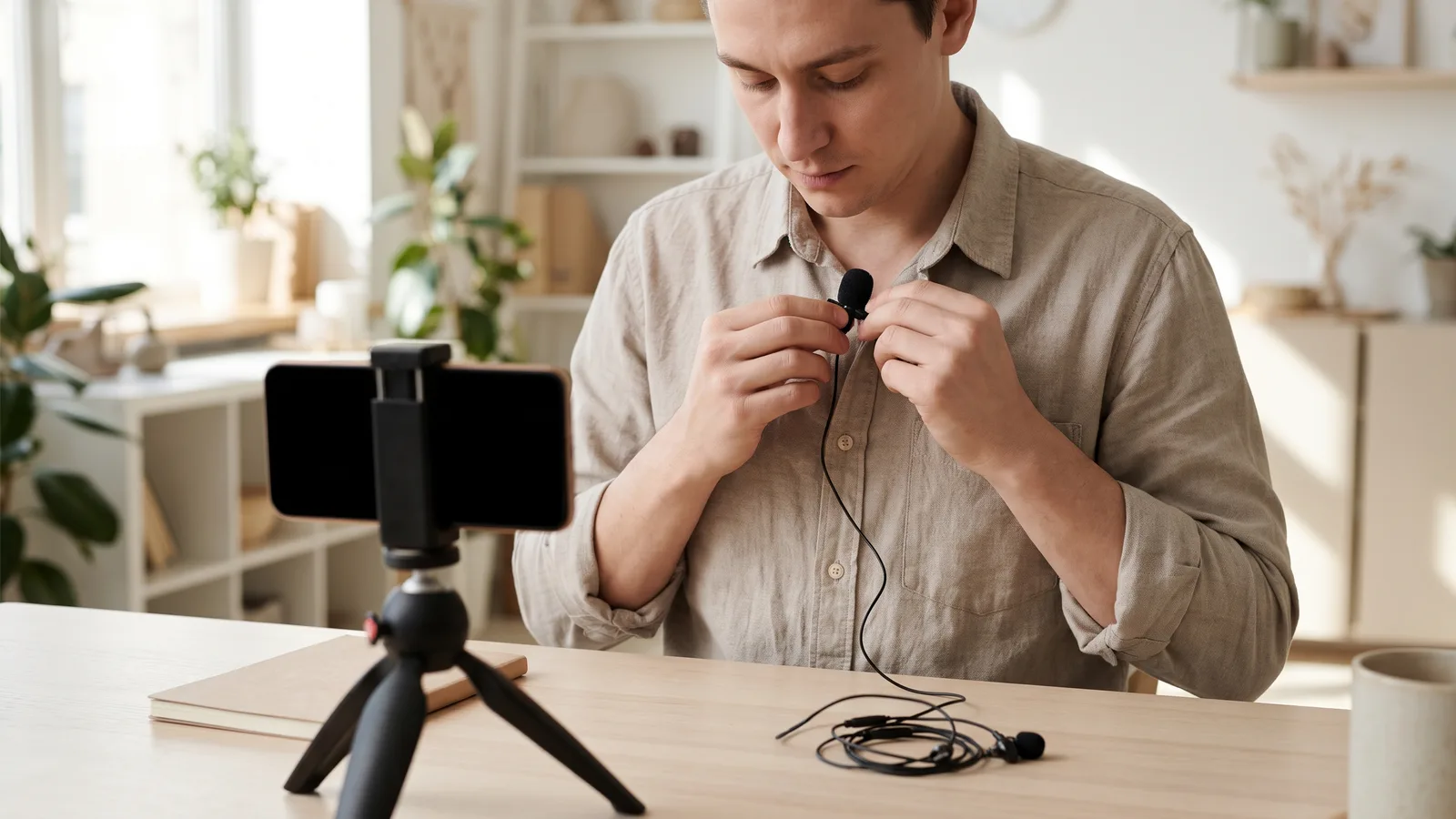
Quick steps: add a voice-over on TikTok
TikTok hides two separate voice tools behind two separate icons on the same screen. One records you. The other reads typed text aloud in a synthetic voice.
- Shoot in the app or upload a clip, then tap Next — neither voice tool exists on the camera screen.
- Tap the microphone icon (Voice), drag the playhead to where narration should start, hold the record button and speak.
- Set Keep original sound on or off: on when the footage has usable dialogue or ambience, off when narration carries the clip alone.
- For a synthetic read, tap Aa, type the line, tap the placed text box and choose Text-to-speech, then pick a voice.
- Trim, balance the voice against music, generate captions, switch on the AI-generated content label if any voice is synthetic, and post.
Both routes can live in one video. A pattern that works on tutorial accounts: your own voice for the hook, a text-to-speech layer for the numbered steps, so the spoken words and the on-screen text match exactly.
What follows is the detail that saves you a second take — the decision to make before you shoot, how each screen behaves, and the checks that belong before the post button.
What to decide first: recorded voice, text-to-speech or imported audio
Pick your audio source before you shoot, because changing your mind later usually means recording everything again. Your own voice carries trust and suits reviews, reactions and anything face-to-camera. A synthetic voice wins on speed, consistency across a posting schedule, and privacy if you keep your real voice off the account.
Android Authority reports that video recorded inside the TikTok camera runs from 15 seconds up to 10 minutes, which is the ceiling for narration you record in-app; uploaded files can run longer, and secondary sources differ on the exact upload cap.
| Option | Where you set it | Best for | Limits worth knowing | Watch out for |
|---|---|---|---|---|
| Recorded voice-over | Microphone (Voice) tool on the edit screen | Reviews, reactions, personal stories | Tied to the length of the clip you recorded or uploaded | Room echo and plosives; no noise repair inside the app |
| Text-to-speech | Aa text layer → tap text → Text-to-speech | Faceless accounts, step-by-step tutorials, batch posting | One voice per text box; audio length follows the text layer’s duration | Flat pacing on long sentences; voice choice varies by region |
| Imported audio | Mixed in another editor, uploaded as a finished file | Multi-language dubs, music beds, cleaned-up narration | Export inside TikTok’s documented delivery range | In-app captions must be regenerated after upload |
| Ads Manager narration | ads.tiktok.com Video Editor, Narration tab | Paid ad creatives only | Script-driven; not part of the consumer app | Not available for organic posts |
Example: a course creator who posts several clips a week records the hook in their own voice and uses text-to-speech for the numbered steps, so a script rewrite never costs a new take.
Step 1 — Shoot or upload your clip and open TikTok’s editing screen
What you need: the footage, wired headphones, a quiet room, and your script written out.
Record inside the app or tap the upload button and choose a file from your camera roll. Tap Next. The edit screen puts Sounds along the bottom and the Voice, Text, Captions, Effects and Stickers tools down the right rail.
Let an uploaded file finish processing before you touch the microphone icon. Narration recorded over a still-loading clip tends to land on the wrong frame, and you will only notice after playback.
Trim the clip first, too. Every cut you make after recording shifts your narration against the picture, which is the slowest way to lose a good take.
TikTok For Business describes its revamped, generative-AI-powered Video Editor as bundling digital avatars, narration with auto-captions, one-click translations with voiceovers and AI-generated soundtracks in the browser — a separate tool inside Ads Manager, not the app you post organic clips from.
Step 2 — Record the voice-over with the microphone tool, and set "Keep original sound"
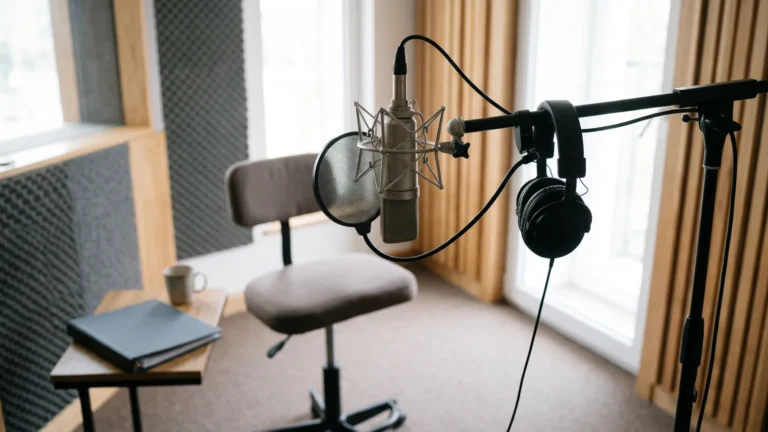
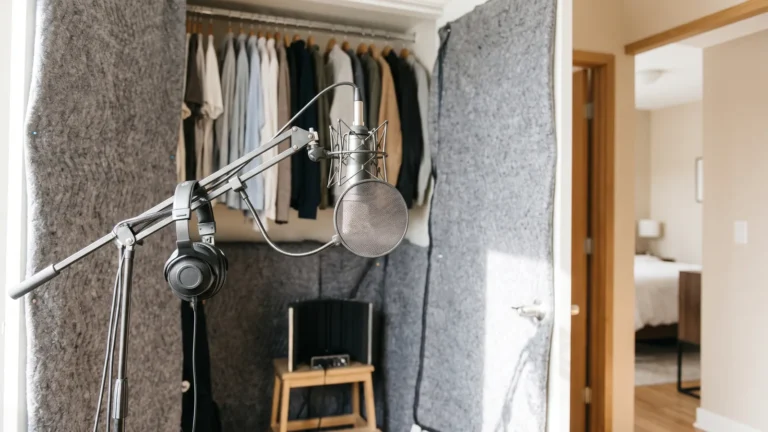
What you need: a soft-furnished room, wired headphones, and the line in front of you.
Tap the microphone icon on the edit screen. Drag the playhead to the exact frame where narration starts, hold the red button, speak, and release to stop. TikTok writes the take onto the timeline position you chose, so set it precisely rather than fixing it later.
The Keep original sound toggle appears once a take exists. Leave it on for talking-head footage or product sounds, switch it off for silent b-roll where your narration should be the only voice.
Record one segment per scene instead of one continuous pass. Short segments let you re-record a single flubbed word without redoing the whole video.
Keep the mic about a hand’s width from your mouth and slightly off-axis, the same discipline that produces clean results in any recording app. Write the line first — a sixty-second explainer script broken into timed beats is a good model for pacing a TikTok read.

Step 3 — Add a text-to-speech voice from the text (Aa) layer and choose a voice
What you need: the sentence you want spoken, and a recently updated app.
Tap Aa, type your line, and place it on screen. Tap the finished text box once and a menu appears with options including Set duration and Text-to-speech. Choose Text-to-speech, then scroll the voice carousel and tap a voice to preview it.
Set duration before you generate. The spoken audio is anchored to how long that text layer stays on screen, so a two-second layer rushes a long sentence.
Break paragraphs into several short text boxes, each with its own voice. That gives you per-line timing control and keeps the captions readable at phone size.
The TikTok Ads Manager Help Center states that in the Video Editor’s Narration tab you type a script and a single action generates both the synthetic voiceover audio and the matching subtitles. TikTok’s Ads Manager Help Center also documents that the Video Editor can translate a voiceover script into Japanese, Indonesian, German, Korean, Portuguese, Spanish or French and regenerate the audio to match — seven languages, for ad creatives rather than organic posts.
If the in-app voices never fit your brand, build the audio elsewhere and upload the finished file; free local text-to-speech models you can run on your own machine are one route.
Step 4 — Edit the mix: trim, re-record sections, balance volume and generate captions
What you need: headphones for detail work, plus your phone’s own speaker for the final listen.
Reopen the microphone tool to see your takes as blocks on the timeline. Tap a block to delete it and re-record only that stretch. The volume slider under Sounds sets original sound against added sound, and that balance is the single biggest driver of whether viewers finish the clip.
Duck music well under the voice and judge it on phone speakers, not studio headphones. Thin, metallic or rushed narration usually traces back to the causes behind bad-sounding AI dubbing rather than the platform.
Tap Captions to auto-transcribe, then fix names, brands and numbers by hand before posting. The TikTok Ads Manager Help Center notes that its Video Editor can auto-generate captions from an existing voiceover track, so narration and on-screen text stay in sync without retyping the script.
Common failure: recording the entire video in one continuous take. One mistaken word then forces a full re-record and the narration drifts out of sync with your cuts. Record per scene, and keep each segment to a single idea.
Step 5 — Disclose AI voices, apply the AI-generated content label and post
What you need: your caption text and the post screen’s More options panel.
On the post screen, open More options and switch on the AI-generated content label before publishing. Add a plain line in the caption as well, such as "Narration: AI text-to-speech" — the in-app toggle and a written note cover different viewers.
The Content Authenticity Initiative reported that TikTok joined the CAI and C2PA and began labelling AI-generated content with Content Credentials, making it the first major social platform to support the open C2PA standard, in an announcement made in May 2024.
Never publish a cloned voice of a real person without written permission, including a client’s or a colleague’s. Automated checks are not a defence either, as benchmark results for AI voice detectors make clear.
Disclosure duties differ by country and by who you are: advertisers and sponsored posts face obligations that casual creators often do not, and rules vary between the EU, the UK and individual US states. This is general information, not legal advice.
Check it before you post: a 6-point audio and compliance QA pass
Run these six checks in order, on the phone you will watch it on.
- Phone-speaker test. Play the draft at half volume on the built-in speaker; if the narration disappears under music, lower the music, not the voice.
- Cut points. Scrub each transition and confirm no word is clipped at the start or end of a segment.
- Caption accuracy. Read the auto-captions against the audio and correct names, brands and figures by hand.
- Sync. Watch once muted-to-unmuted at the midpoint, where drift from late trims usually shows first.
- Export specs. TikTok for Developers’ media transfer guide sets video delivery limits of 23–60 FPS and picture sizes from 360 pixels up to 4096 pixels on each side, which is the safe export range for a finished voice-over video.
- Disclosure. If any voice in the clip is synthetic, the AI-generated content label is on and the caption says so.
Save a draft and come back to it an hour later for one more listen. Pacing problems that are invisible during editing are obvious on a cold ear, and a re-record at draft stage costs minutes rather than a deleted post.

Frequently asked questions
Can you add a voice-over to a TikTok you have already posted?
No. TikTok’s voice tools only run before publishing, so an existing post has to be deleted and replaced with a re-edited upload, which resets its views, likes and comments. Save drafts instead, and review audio before you hit post.
Why is Text-to-speech missing when I tap my text?
Three usual causes: you tapped Aa again instead of tapping the placed text box, the app build is out of date, or no voices have loaded for your region and app language. Place the text first, tap it once, and update the app before retrying.
Can TikTok read a script in another language?
In the consumer app, available text-to-speech voices follow your app language and region. For paid campaigns, the TikTok Ads Manager Help Center describes a Multilingual tool that automatically translates an ad’s audio into other languages, adds matching text captions and serves each viewer their device language.
Should "Keep original sound" stay on?
Keep it on when the footage contains dialogue, ambience or a product sound viewers should hear under your narration. Turn it off for silent b-roll, screen recordings with system noise, or any clip where a second voice would compete with yours.
What export settings protect a voice-over from being re-compressed badly?
Hand TikTok a file already inside its documented delivery range rather than something far outside it: the TikTok for Developers media transfer guide lists 23–60 FPS and picture sizes between 360 and 4096 pixels on each side. Mix the narration with headroom so platform processing has room to work.
Sources
- How to generate voiceovers with TikTok Ads Manager Video Editor — TikTok Ads Manager Help Center
- How to add captions with TikTok Ads Manager Video Editor — TikTok Ads Manager Help Center
- About the Multilingual tool in TikTok Ads Manager — TikTok Ads Manager Help Center
- Introducing the newly revamped Video Editor — TikTok For Business blog
- Media Transfer Guide — TikTok for Developers (Content Posting API)
- A step closer to social media consumers: TikTok joins the CAI and C2PA — Content Authenticity Initiative
- What is the maximum length for a TikTok video in 2024? — Android Authority
This article was drafted with AI assistance and published by the Dubbing AI Editorial Team after its facts were checked against the sources listed above.