Viewers switch the player’s Audio track back to "Original" on each video — gear icon on desktop and mobile, three-dot menu on Shorts — then set a preferred audio language. Creators uncheck "Allow automatic dubbing" in YouTube Studio settings and save.
Why YouTube is dubbing your videos (and what "auto-dubbed" actually means)
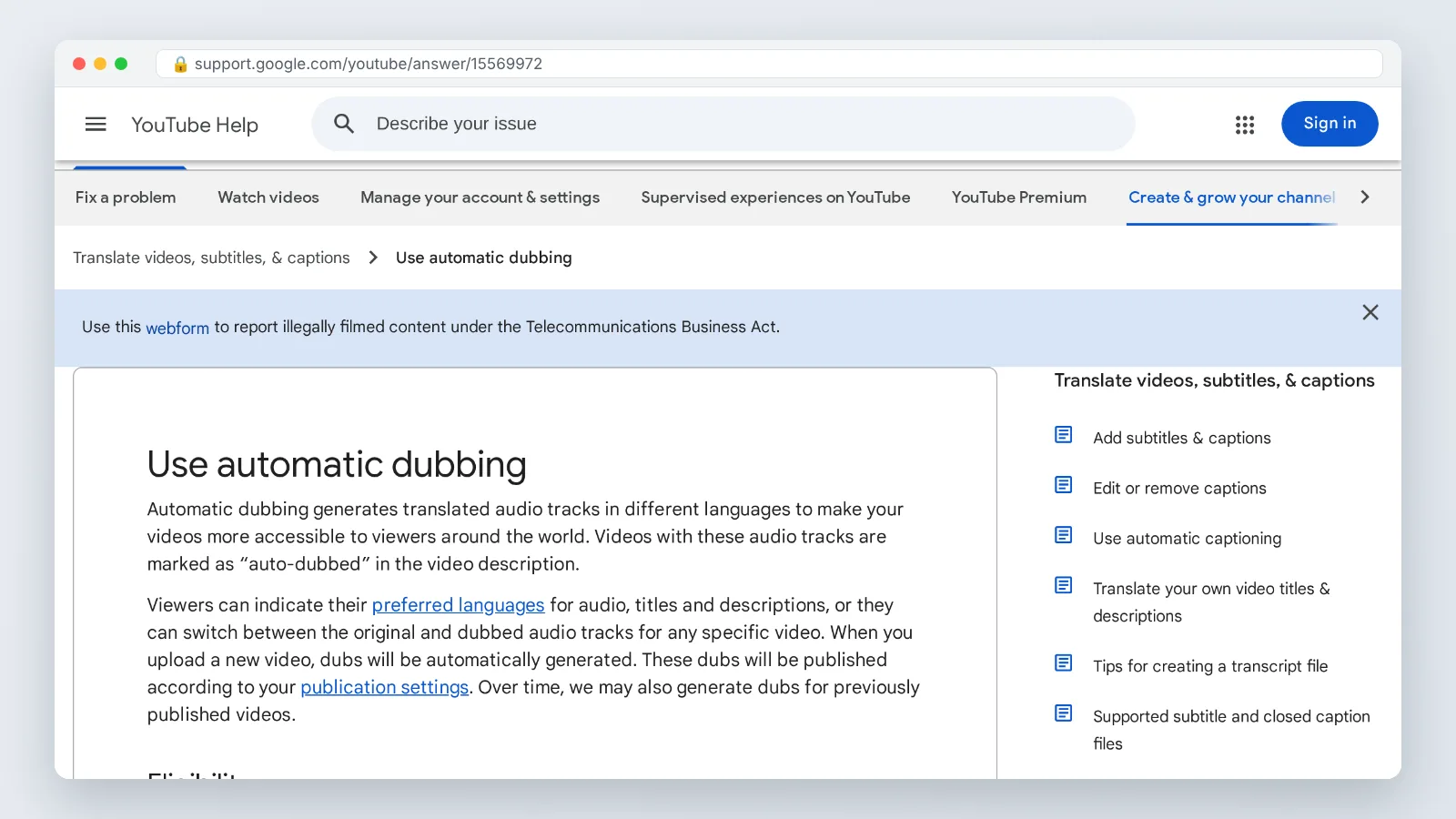
An auto-dubbed video is not a second upload. YouTube keeps one video and attaches extra synthetic audio tracks to it in other languages, while the creator’s original soundtrack stays available underneath. YouTube Help states that automatically dubbed videos carry an "auto-dubbed" label in the video description, and that the feature generates translated audio tracks in other languages.
The reason a dub starts without any click from you is the default rule behind alternate tracks. YouTube Help’s multi-language documentation explains that alternate audio tracks default to the viewer’s preferred language, which YouTube determines from watch history. Your app language, your region and the last few videos you watched can all push you onto a track the creator never recorded.
PPC Land reports that YouTube’s December 2025 data showed more than 6 million viewers watch over 10 minutes of auto-dubbed content every day. That is a large default, not an edge case.
One documented tell and two informal, observational ones that suggest you are listening to a dub:
- The description shows the "auto-dubbed" label, often with a note about the original language — this is the documented signal, per YouTube Help.
- Lip movement can look out of sync with the words, even in close-up talking-head shots. YouTube does not document this, so treat it as a hint rather than proof.
- The voice may sound smoother or flatter than the creator’s usual delivery, and similar across unrelated channels. Again, this is an impression, not a documented behavior.
Step 1 — Switch a video back to the original audio track on desktop
Time needed: a rough guide — seconds per video, once you know where the control sits. What you need: a desktop browser with the video open and playing.
- Hover over the player so the control bar appears, then click the gear (settings) icon in the bottom-right corner.
- Look for the Audio track row. If it is missing, that video has only one track and nothing is dubbed.
- Open Audio track and pick the entry marked as original — it usually names the source language and includes the word "original."
- Let playback continue for a few seconds and confirm the voice matches the mouth movement.
YouTube Help describes two viewer controls for this feature: preferred-language settings for audio, titles and descriptions, and a per-video switch between the original and dubbed audio tracks. The second one is what you just used.
TechPP reports that there is no single global off switch for viewers, and that the audio track has to be changed per video using the settings gear on each video or Short. Expect to repeat this on the next video from the same channel.
Digitec, writing specifically about logged-out viewers, reports that they must reselect the original track per video, using the player cogwheel on regular videos and the three-dot menu on Shorts. So assume the same cogwheel routine in a signed-out or incognito window. YouTube does not document how the switch behaves across playlists or new browser profiles, so re-check in those contexts rather than assuming it carried over.
Step 2 — Turn off dubbed audio in the YouTube mobile app and on Shorts
Time needed: a rough guide — well under a minute per video. What you need: the YouTube app on a current version; if you cannot find the audio controls at all, updating the app is the first thing worth trying.
For a regular video in the app, tap the video once to show the controls, tap the gear icon (in current builds it appears near the top of the player, though placement varies by version), then open the audio track list and choose the original language. The list looks much like the desktop one, only stacked vertically.
Shorts work differently, and that trips up most people. Digitec’s guidance, which covers the logged-out experience, points to the three-dot menu on Shorts rather than a player cogwheel. On a Short, tap the three dots, look for the audio or language entry, and pick the original. Menu labels vary between app versions, so treat the wording as something to look for rather than a fixed string.
Slator reported that in February 2026 YouTube launched Expressive Speech in eight languages and said auto dubbing covered 27 languages in total. Wider coverage means more of your feed is eligible for a dubbed default, including Shorts you never searched for.
Tablet apps and living-room TV apps keep their own settings. Check each device once rather than assuming the phone fix traveled with your account.
Step 3 — Set your preferred audio languages so YouTube stops defaulting to dubs
Time needed: a rough guide — a few minutes, once per account. What you need: to be signed in — this control does nothing while you are logged out.
Open your profile picture in the top-right corner, go to Settings, and find the language options for your account. Set your preferred language for audio tracks to the language you actually want to hear, and set the matching preference for titles and descriptions so translated metadata stops appearing too.
YouTube Help lists preferred-language settings for audio, titles and descriptions as one of the two official viewer controls, alongside the per-video track switch. Treat it as a filter that lowers how often dubs appear, not a kill switch.
Slator reported that by June 2025 YouTube said it was rolling auto dubbing out to 80 million creators worldwide across 20 languages. With a catalog that size, the preference setting is the only thing standing between you and repeated manual switching.
Two things to keep in mind. Watch history still influences defaults, so a week spent watching Spanish-language content can nudge the system back. Signing out, clearing cookies or using a second browser resets you to per-video switching.
Step 4 — Creators: turn off automatic dubbing for your whole channel in YouTube Studio
Time needed: under two minutes. What you need: owner-level access to the channel in YouTube Studio on desktop.
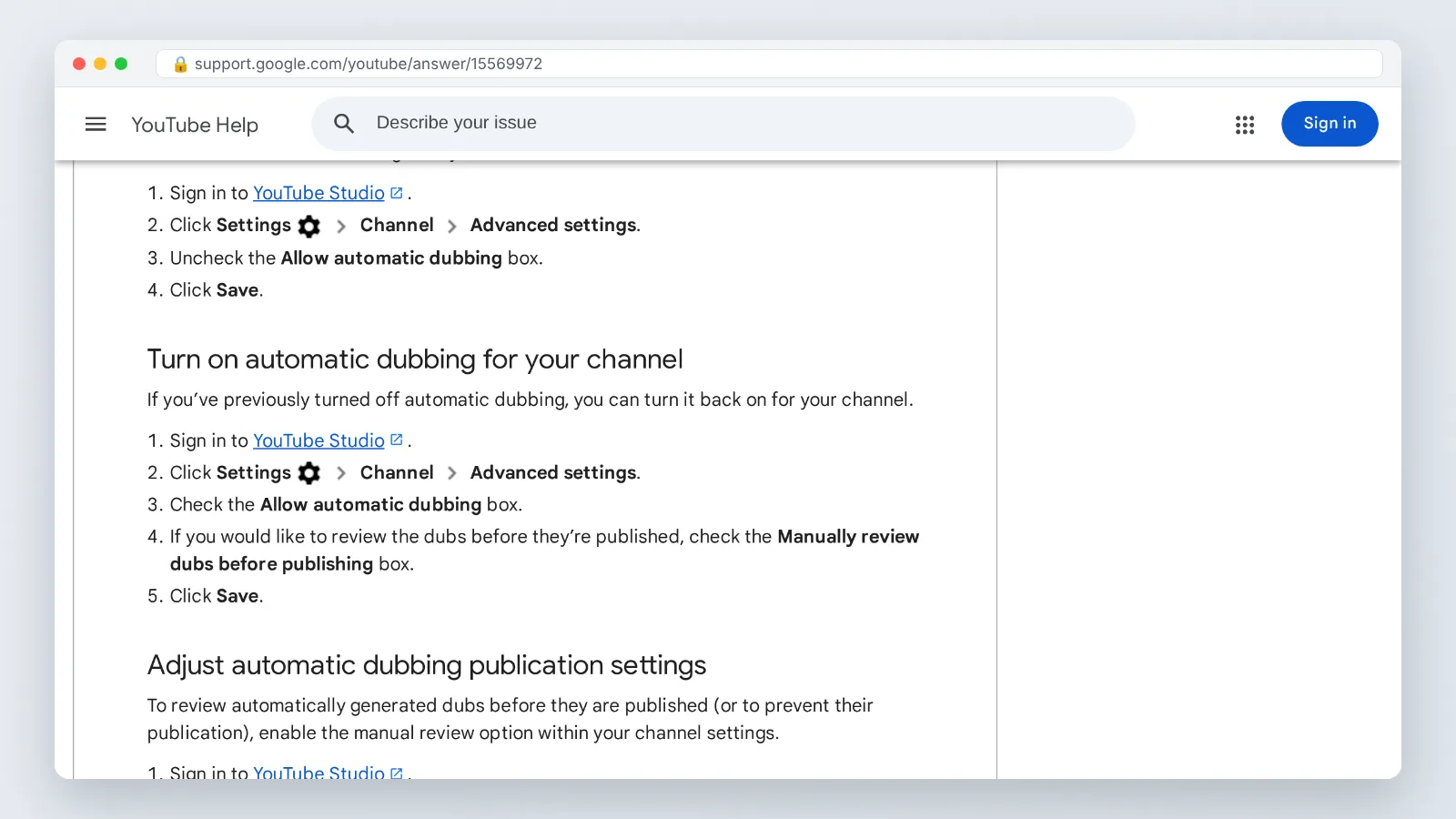
YouTube Help states that creators turn off auto dubbing channel-wide in YouTube Studio under Settings > Channel > Advanced settings by unchecking "Allow automatic dubbing." The documented sequence is:
- Sign in to YouTube Studio.
- Click Settings, then Channel, then Advanced settings.
- Uncheck the Allow automatic dubbing box.
- Click Save.
Follow that path exactly, including the final Save — closing the dialog without saving leaves the setting unapplied. The control does not live on the upload screen or in individual video settings.
The YouTube blog said that at launch auto dubbing covered English into French, German, Hindi, Indonesian, Italian, Japanese, Portuguese and Spanish, and those languages back into English. If your channel publishes in one of those directions, assume dubs were generated unless you confirm otherwise.
YouTube Help documents this checkbox as the channel-wide control; it does not describe what happens to tracks already attached to published videos. That is why Step 5 exists as a manual check.
Before you switch it off permanently, weigh the trade-off honestly. Localization managers running course content or product tutorials often want translated audio, just not an unreviewed version attached automatically to a pricing explainer or a compliance module.
Step 5 — Creators: unpublish or delete auto-dubs already attached to published videos
Time needed: one to two minutes per video. What you need: your Content list in YouTube Studio and a short list of the uploads you want cleaned up.
Treat this step as general guidance rather than a documented procedure: YouTube Help’s quoted instructions cover the channel-wide checkbox, not the removal of tracks that are already live. The practical move is to check the language rows on each video in Studio. Open Content, click a video, and go to its subtitles and language area, where each added language appears as its own row. Where the row menu offers an unpublish or delete option for the dubbed audio track, use it. Start with your highest-traffic uploads and your most sensitive ones — pricing pages, legal explainers, onboarding videos.
YouTube Help states that videos longer than 120 minutes are not eligible for automatic dubbing. Long webinar recordings and full course replays therefore need no cleanup, which usually shortens the list considerably.
If you still want other-language audio under your own control, record or generate it yourself and upload it as a multi-language track. Tools built for this purpose let you approve the script and the voice before anything goes live — AI Studios, for example, offers text-to-speech voiceovers in 150+ languages and accents on its paid plans, plus voice cloning from a short recording. Know the limits before you click: the Free plan’s voiceovers cover 30+ languages, and AI dubbing minutes are capped per plan — 120 minutes a month on Personal and 240 minutes a month on Team — with any extra dubbing usage deducted from generative credits.
A reviewed dub you uploaded beats an automatic one you never heard.
Quick checklist: confirm original audio is playing everywhere
Run this pass once after you change anything, using the same video each time so you can compare what you hear. Pick a talking-head clip where lip sync is obvious.
- Desktop browser, signed in: gear icon shows the original track selected, and the voice matches the mouth.
- Desktop browser, signed out or incognito: same check, since the preference does not follow you.
- Mobile app, regular video: gear icon, audio track set to original.
- Mobile app, Shorts: three-dot menu, original audio confirmed on two or three Shorts in a row.
- TV or tablet app: play one video and listen for the creator’s real voice.
- Account settings: preferred audio language and preferred title and description language both set.
- Creators: "Allow automatic dubbing" unchecked and saved under Settings > Channel > Advanced settings.
- Creators: top ten videos opened in Studio and their language rows reviewed, with unwanted dubbed tracks unpublished where that option is available.
If one line fails, fix it on that device before moving on. Mixed results across devices are normal, and they are the main reason people believe the setting "did not save."
Common mistakes when turning off YouTube auto dubbing
The most common failure is assuming one fix is permanent. Someone switches a video to the original track, hears the real voice, and then hits a dub again two videos later — usually while signed out, on a Short, or on a different device. The fix is to treat the per-video switch as a per-session habit and the language preference as the thing that reduces how often you need it.
The second most common failure belongs to creators: unchecking the channel setting, forgetting to click Save, and never auditing the back catalog.
| Mistake | Why it happens | Fix |
|---|---|---|
| Dub returns on the next video | The track switch applies per video, not account-wide | Set preferred audio language while signed in, then switch per video as needed |
| Shorts still play dubbed | Shorts use the three-dot menu, not the player cogwheel | Open the three dots and select the original audio entry |
| Setting looks unchanged after a visit to Studio | The documented path ends with Click Save | Uncheck the box, then click Save before leaving Advanced settings |
| Old videos still have dubs | The documented checkbox is the channel-wide control, not a cleanup tool | Check the language rows video by video in Studio |
| Phone fixed, TV not | Device apps hold separate settings | Verify playback on each device once |
| No Audio track row appears | That video has a single track | Nothing to change — the original is already playing |
Audit your newest uploads monthly. Settings get re-enabled during account changes, and catching a dub in week one is far cheaper than finding it once the video has run up its views.
Frequently asked questions
Can viewers turn off YouTube auto dubbing for every video at once?
No. TechPP reports there is no single global off switch for viewers, so the audio track has to be changed per video using the settings gear on each video or Short. Setting a preferred audio language while signed in reduces how often dubs load by default, but it does not remove the feature.
Does unchecking "Allow automatic dubbing" delete dubs already on my videos?
Not according to anything YouTube Help documents. YouTube Help describes the channel-wide control in YouTube Studio — sign in, go to Settings > Channel > Advanced settings, uncheck "Allow automatic dubbing," then click Save — but it does not state what happens to tracks already published. As general guidance, open each affected video in Studio and check the language rows, unpublishing or deleting any you do not want live.
How many languages does YouTube auto dubbing cover now?
Slator reported that in February 2026 YouTube launched Expressive Speech in eight languages and said auto dubbing covered 27 languages in total. Earlier, Slator reported that by June 2025 YouTube said it was rolling the feature out to 80 million creators worldwide across 20 languages.
Why does one of my long uploads have no dubbed track at all?
YouTube Help states that videos longer than 120 minutes are not eligible for automatic dubbing. Full webinar recordings, livestream replays and multi-hour course sessions therefore skip the feature entirely, which means your cleanup list usually covers only shorter uploads.
Does auto dubbing replace the creator’s original audio permanently?
No. The original soundtrack remains on the video as a selectable track, and YouTube Help lists a per-video switch between the original and dubbed audio tracks as one of two official viewer controls, alongside preferred-language settings for audio, titles and descriptions.
Sources
- Use automatic dubbing – Android – YouTube Help
- Use automatic dubbing – Computer – YouTube Help
- Add Multi-language features to your videos – YouTube Help
- Break down language barriers with auto dubbing on YouTube – YouTube Blog
- How Good Is Automatic Dubbing on YouTube? – Slator
- YouTube to Launch Real-Time AI Dubbing for Livestreams in Early 2027 – Slator
- YouTube auto dubbing tops 6M daily viewers, expands to 27 languages – PPC Land
- How to get rid of that annoying AI dubbing on YouTube – Digitec
- How to Turn Off YouTube Auto-Dub and Listen to Original Audio – TechPP
This article was drafted with AI assistance and published by the Dubbing AI Editorial Team after its facts were checked against the sources listed above.