Write a script into each slide’s notes, record it with PowerPoint’s Record tab or drop in AI-generated audio per slide, check timings in Slide Sorter, then use File > Export > Create a Video to save an MP4.
What you need before adding a voice-over to PowerPoint
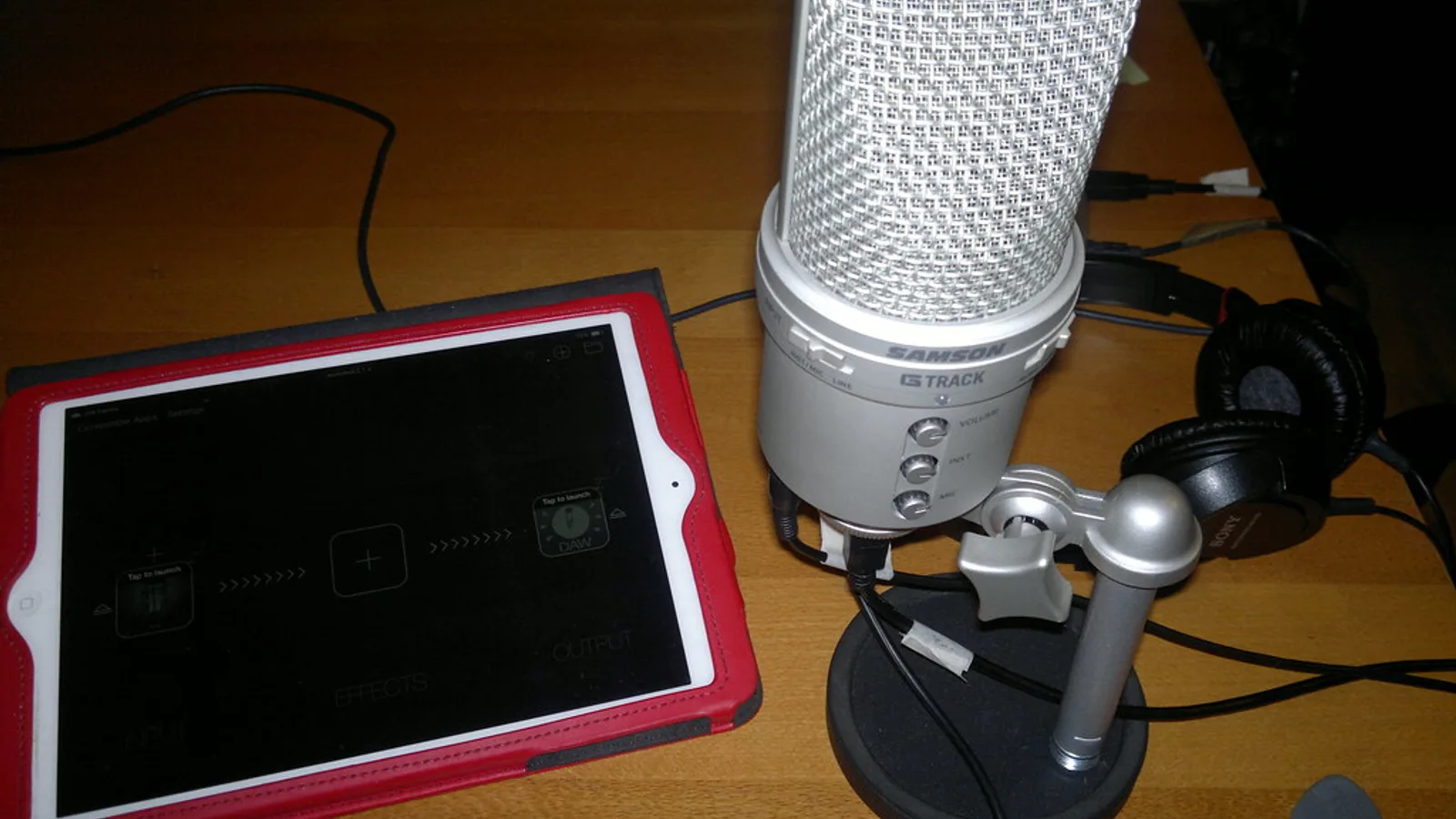
Five things belong on your desk before you press record: a finished deck, a quiet room, a microphone that isn’t your laptop’s built-in array, closed-back headphones, and a script sitting in the speaker notes. Skip any one and you will re-record. A USB condenser or a headset mic held a hand’s width from your mouth beats the laptop lid every time.
Lock the slide design first. Every text edit you make after recording risks pulling narration out of sync with the animation it was timed against, and PowerPoint will not warn you.
Know your file formats before you start, because they decide what you can import. Microsoft Support recommends .m4a encoded with AAC as the audio format for PowerPoint, and .mp4 encoded with H.264 video and AAC audio as the video format. Exotic formats get converted, downgraded or refused outright.
Budget the time honestly. A 20-slide deck with a written script usually fills a focused afternoon: about an hour to script, an hour to record and re-record, half an hour to trim, and a short export plus review pass. Localization managers running the same deck in several languages should double the trim budget.
Decide now whether a human or a synthetic voice narrates this deck. The two workflows split apart at Step 2 and Step 3 below.
Step 1 — Script your narration slide by slide
Time: 45–90 minutes for a 20-slide deck. Needed: the deck in Normal view, Notes pane open.
Write the script into the speaker notes field of each slide rather than a separate document. The notes pane becomes your teleprompter in Presenter View while recording, and the script travels with the file when a colleague inherits the deck. One slide, one tight paragraph.
Write for the ear. Use contractions, cut subordinate clauses, and put the slide’s single point in the first sentence so a listener who looks away still catches it.
As a planning rule, treat roughly 120 words of script as about a minute of spoken audio, and split any slide that runs past 90 seconds. That is a working estimate for pacing, not a measured figure, and fast talkers will land shorter.
Mark the awkward words. Spell out acronyms phonetically, add a slash where you want a breath, and bold the one word per sentence that carries the emphasis.
Read the whole thing aloud once, standing up, before you touch the Record tab. Sentences that trip you on a cold read will trip you on take four.
Step 2 — Record narration with PowerPoint’s built-in Record tab
Time: 1.5–2× your finished runtime. Needed: microphone, headphones, Presenter View script.
Microsoft Support describes PowerPoint’s recorder as capturing more than audio — it records voice, ink gestures and your on-camera video presence, for a whole deck or a single slide. That matters because it means a single flubbed slide is a single fix.
The sequence inside PowerPoint:
- Open the Record tab and choose From Beginning or From Current Slide.
- Pick your microphone and camera in the settings menu at the top right, and switch the camera off if you only want audio.
- Wait out the countdown, then hold one second of silence before your first word.
- Speak the slide, pause, then advance with the arrow key or a click — the advance point is what PowerPoint stores as the slide timing.
- Press Stop, then Esc, and play the slide back through headphones.
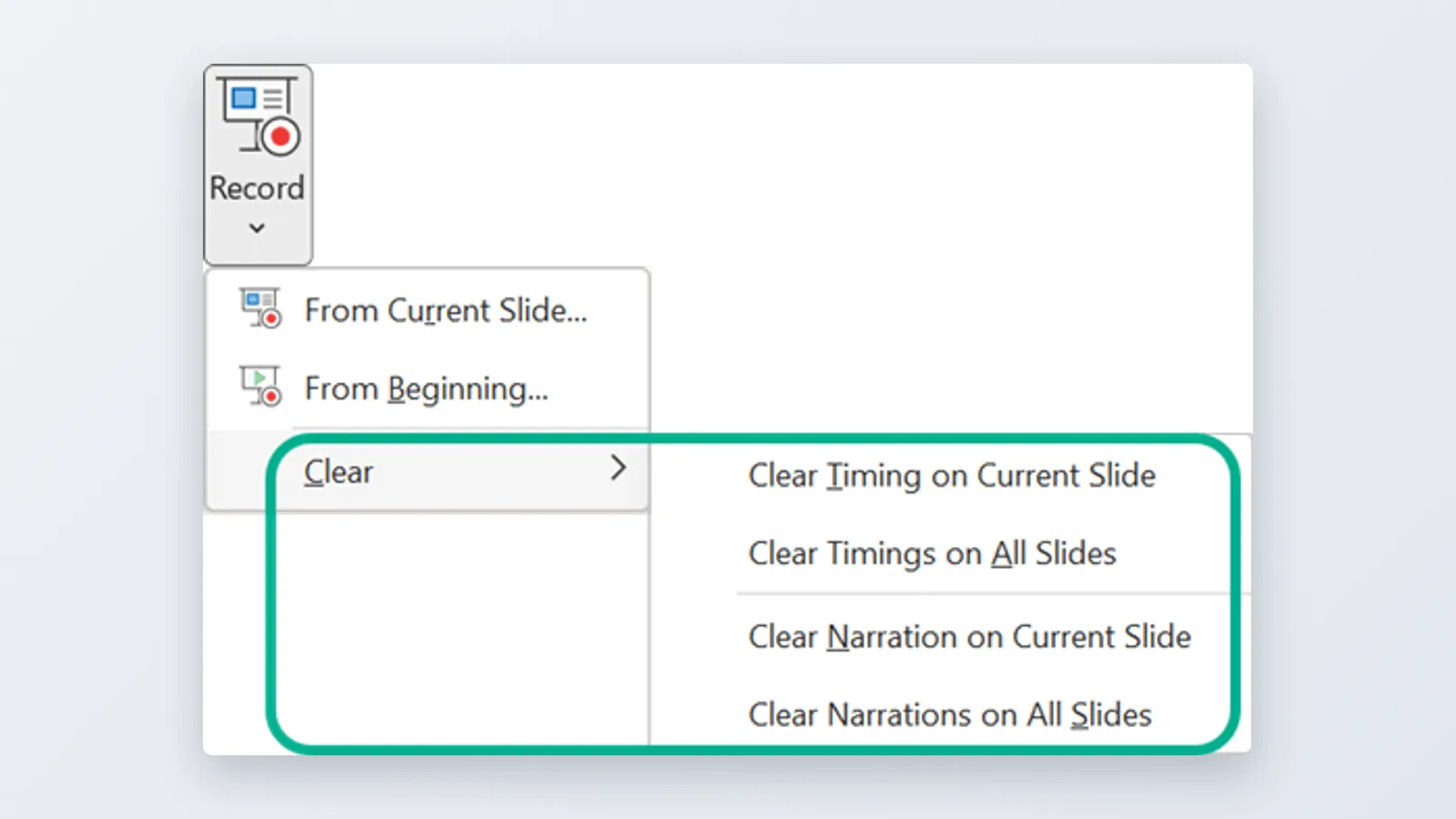
- Fix a bad slide with Clear Recording on Current Slide, then record that slide alone.
Record a few seconds of silent room tone on the title slide. Editors use it later to patch gaps so the background hiss stays consistent.
Do not record standing in front of a fan, a laptop running hot, or an open window facing traffic.
Step 3 — Generate AI voice-over audio and insert it on each slide
Time: 30–60 minutes for a 20-slide deck. Needed: the script split per slide, a text-to-speech tool, Insert > Audio > Audio on My PC.
Choose this route when you need the same deck in several languages, one consistent narrator across a course library, or quarterly script updates without rebooking a voice actor.
Export one audio file per slide and name the files to match slide numbers. Insert each file on its slide, set Start to Automatically, tick Hide During Show, and leave Play Across Slides unchecked so audio stops when the slide does.
Microsoft Support states that PowerPoint for the web supports only MP3, WAV, M4A, AAC and OGA audio files when you insert audio, so browser-based editors should export in one of those five.
Platforms built for this sit outside PowerPoint and hand you finished files. AI Studios, DeepBrain AI’s cloud platform, lists more than 1,000 AI voices on its pricing page, with text-to-speech in 150+ languages and accents on paid plans and 30+ languages on the Free plan, plus voice cloning from a short recording. Its Docs to Video feature accepts .ppt, .pptx, .pdf, .doc, .docx, .xlsx and .txt files up to 20 MB, according to DeepBrain AI’s help center.
Inserted audio does not set slide timings for you. Set each slide’s duration manually under Transitions > Advance Slide > After, matching the length of that slide’s audio clip plus a short tail.
Step 4 — Review timings, trim audio and add captions
Time: about 30 minutes per 20 slides. Needed: headphones, Slide Sorter view.
Switch to Slide Sorter and read the timing printed under each thumbnail. Any slide showing no time, or a suspiciously round number, has no narration attached to it.
Microsoft Support notes that a slide with no recorded narration or timing is given a default duration of 5 seconds in the exported video, a value you can change in the "Seconds to spend on each slide" box. That default is the reason silent decks appear to race.
Clean each clip with Audio Tools > Playback > Trim Audio. Cut the breath before your first word, cut the mouse click at the end, and set a short fade in and fade out so clips stop clicking into each other.
Level the deck by ear. Play slides 1, 10 and 20 back to back through headphones; if you reach for the volume knob, re-record or normalize the outlier.
Captions need a separate step. PowerPoint’s live subtitles run during a slide show, not inside an exported file, so plan to ship an .srt sidecar built from your notes-pane script or burn captions in with a video editor after export.
Step 5 — Export the narrated deck as an MP4 video
Time: five minutes of clicks, plus render time that scales with deck length and resolution.
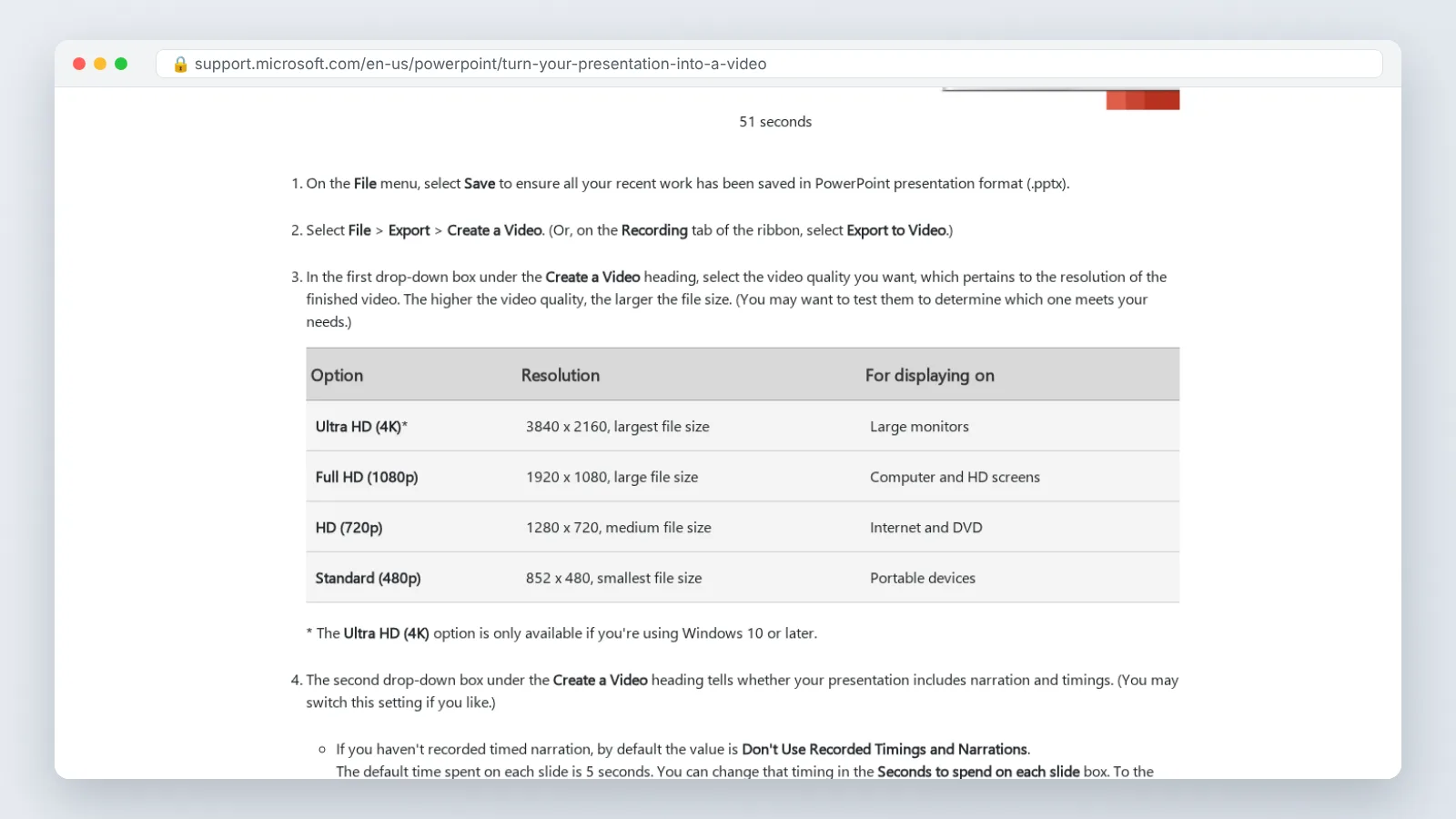
Go to File > Export > Create a Video. Set the quality dropdown first, then confirm the second dropdown reads Use Recorded Timings and Narrations — this is the setting people miss, and missing it produces a silent video.
Microsoft Support states that PowerPoint can export a narrated presentation to two video container formats, MP4 or WMV. Pick MP4 for anything headed to YouTube, an LMS or a client.
Microsoft Support also notes that the Ultra HD (4K) export option is not available in the Volume License edition of PowerPoint 2016, so older corporate installs cap out below 4K. Check your build before promising a 4K master.
Click Create Video, name the file, and leave PowerPoint open. The progress bar sits in the status bar at the bottom of the window, and closing the app mid-render kills the job.
Watch the finished MP4 end to end in a media player, not in PowerPoint. Rendering problems — a dropped audio clip, a frozen animation, a slide that flashes past — only show up in the exported file.
Pre-export quality checklist
Run this list before you click Create Video. Each item maps to a failure that otherwise costs you a full re-export.
- Every slide shows a timing in Slide Sorter view, and none of them is an unintended default.
- Narration audio icons are set to Hide During Show on every slide.
- Audio start behavior is Automatically, not On Click, across the deck.
- Trim points remove the opening breath and the closing mouse click.
- Volume is consistent between the first, middle and last slides when checked on headphones.
- No slide text was edited after that slide was recorded.
- Animations that were timed against narration still fire in the right order.
- Audio files are MP3, WAV, M4A, AAC or OGA if the deck will ever be opened in PowerPoint for the web.
- The export dropdown reads Use Recorded Timings and Narrations.
- Resolution matches the destination — your LMS or video host, not your monitor.
- The caption file, if you need one, is written and timed against the final audio.
- A named owner has watched the exported MP4 start to finish.
Save a copy of the .pptx with recordings intact before export. Re-recording is slow; re-exporting from a saved source is not.
Common PowerPoint voice-over mistakes (and how to fix them)
The failure that burns the most hours is editing slides after recording. You fix a typo on slide 7, the animation order shifts, and the narration now describes a bullet that appears two seconds late — across every slide you touched. Freeze the content, then record.
The second most common failure is a silent export. The deck plays perfectly in Slide Show view, the MP4 has no sound, and the cause is almost always the export dropdown left on the timings-free setting.
| Mistake | What you see | Fix |
|---|---|---|
| Timings not used at export | Slides advance evenly, no narration | Set the dropdown to Use Recorded Timings and Narrations |
| Slide edited after recording | Narration leads or lags the animation | Clear that slide’s recording and redo the slide alone |
| Laptop mic used | Hollow, roomy, fan noise under the voice | Re-record with a headset or USB mic at a hand’s width |
| Audio set to On Click | Video reaches the slide and sits in silence | Switch Start to Automatically on every clip |
| Unsupported audio format | File refuses to insert, or drops in the web app | Convert to M4A/AAC or another supported format |
| Visible speaker icons | Gray speaker circles in the exported frame | Tick Hide During Show on each audio object |
One more habit saves rework: record a 30-second pilot of slides 1 and 2, export it as an MP4, and watch it before committing to the other 18 slides. Mic placement, room noise and pacing problems all surface in that pilot.
If you are narrating a deck that will later be dubbed into other languages, keep every slide’s script in the notes pane and keep sentences self-contained. Translators and dubbing tools work far faster against clean, slide-bounded text than against a transcript pulled back out of audio.
Frequently asked questions
Why does my exported PowerPoint video have no sound?
The export dropdown was almost certainly left on the setting that ignores narration. Reopen File > Export > Create a Video and confirm the second dropdown reads "Use Recorded Timings and Narrations" before rendering again.
What audio format should I use for a PowerPoint voice-over?
Microsoft Support recommends .m4a encoded with AAC for audio in PowerPoint. If the deck will be opened in PowerPoint for the web, Microsoft Support lists only MP3, WAV, M4A, AAC and OGA as supported inserted audio files.
Can I re-record just one slide instead of the whole deck?
Yes. Microsoft Support describes PowerPoint’s recorder as capturing voice, ink gestures and on-camera video for a whole slide show or a single slide, so you can clear one slide’s recording and redo only that slide.
What video formats and resolutions can PowerPoint export?
Microsoft Support states PowerPoint exports a narrated presentation to two container formats, MP4 or WMV, and notes that the Ultra HD (4K) option is unavailable in the Volume License edition of PowerPoint 2016, capping older corporate installs below 4K.
Should I record my own voice or generate an AI voice-over?
Record yourself for a one-off deck where personality matters. Choose AI voices when you need the same course in several languages, frequent script updates, or one consistent narrator across dozens of modules without rebooking talent.
Sources
This article was drafted with AI assistance and published by the Dubbing AI Editorial Team after its facts were checked against the sources listed above.